Turn a locked PDF into an editable Word document.
Drop in a PDF and Altto rebuilds its text as a real .docx file you can edit in Word, Google Docs, or Pages — without ever sending the file to a server.
Best with PDFs made from documents. Scanned pages go through OCR, so results depend on the scan; very complex layouts may need a little tidying in Word, and very large files can take a while. Tested on 200 public test PDFs: see the benchmark.
AI tools that never see your files
Summarise, translate, transcribe and enhance — with AI that runs right here in your browser. Your documents, recordings and photos are never uploaded, not even to us.
Three steps, no waiting on a server
Altto does the parsing and file-building right in your browser tab, so there's no upload queue and no "processing your file" spinner tied to someone else's servers. Want other options too? See how to turn a PDF into a Word document — six free ways, step by step.
- 01
Add your PDF
Drag it into the drop zone or pick it from your files. Altto checks it's a readable PDF before doing anything else.
- 02
Text is extracted, page by page
A PDF-reading engine loaded into the page walks each page and pulls out its text and layout in order.
- 03
Save the .docx
Altto rebuilds the text as a Word file and hands it to you to save — open it in Word, Docs, or Pages right away.
A real example
A sample report we made for testing, before and after converting it with this page. Nothing was touched up afterwards.
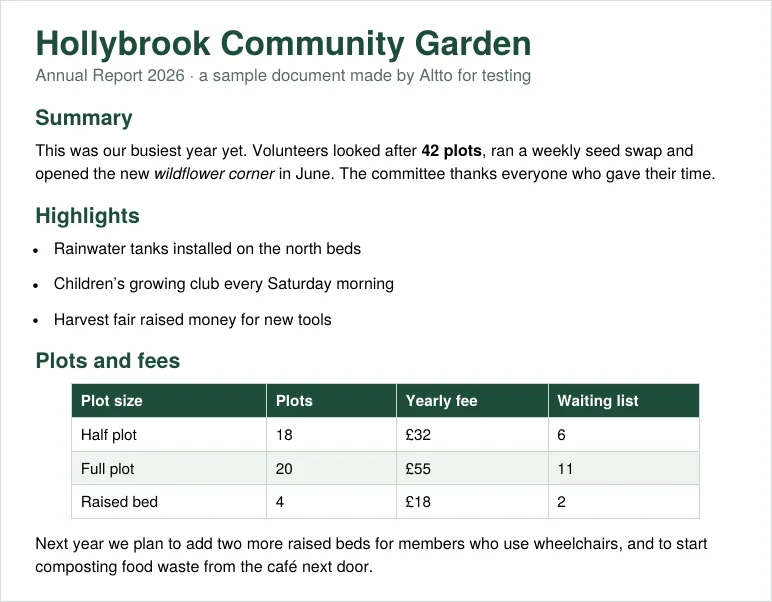
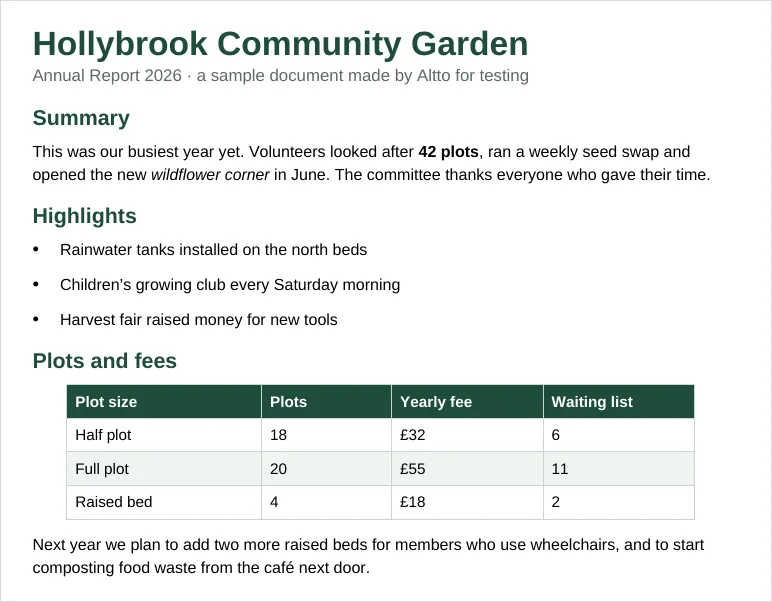
Simple documents like this one usually come through almost exactly. Busy layouts and scans can need some tidying: see how Altto scores on 200 public test PDFs.
Popular tools on Altto
Everything runs in your browser, the same as the converter above — nothing is uploaded, no sign-up, no watermark.
Matched in your browser — what you type isn’t sent anywhere.
PDF tools
Image tools
Document converters
Why this runs in your browser, not on a server
Most free converters ask you to upload a file to a server, wait, then download the result — and your document sits on someone else's disk in the meantime. Altto skips that step completely: there's no server for your file to go to, so there's nothing for anyone to see or store.
- Nothing is uploaded, everThe PDF is opened and converted using code that runs in this browser tab, because there’s no server on the other end. That also means we can’t see it, copy it or keep it.
- No account, no email wallConvert as many files as you like without signing up or handing over an email address.
- Text-based, not a scan guesserAltto reads the real text layer in your PDF, so headings, paragraphs, and word order come through cleanly. See how it scores on 200 public test PDFs in our PDF to Word accuracy benchmark.
- Independent and made in BritainAltto is a small, independent site run in the UK — not a big tech company. It’s written in British English and includes tools for UK rules, such as Making Tax Digital and UK passport photos. Who runs Altto.
files stored on our servers. Your file never reaches a server — the conversion library is loaded once, then everything happens locally, right here in your browser.
Frequently asked questions
The practical details on formats, limits, and what Altto can and can't do. New to this? Start with how to turn a PDF into a Word document, or browse all our guides.
Will my formatting and images come through?
May vary by document: two- and three-column layouts and text wrapped round pictures usually come through, but check long or busy pages. Heavily designed pages such as flyers and posters keep their look by going in as a background picture with the text on top, still editable. Maths equations come through as pictures of the equation, and scanned pages depend on the quality of the scan. See our guide on keeping formatting intact for tips.
Does it work on scanned PDFs?
Is there a file size or page limit?
What is the best free PDF to Word converter in the UK?
How do I convert a PDF to a Word document?
- Open Altto in your browser (this page).
- Drop in the PDF, or click to choose it.
- Wait a few seconds while it converts on your device.
- Click Download and open the .docx in Word.